

Installation Instructions
Thank you for choosing Ubuntu Budgie for your new operating system. Ubuntu Budgie is a Ubuntu flavor using a desktop environment called Budgie. Budgie is a desktop environment focused on having a clean and yet powerful desktop without unnecessary bloat. Before installing, check the minimum specified hardware, so that you can have a flawless experience. Here are the minimum specs for running Ubuntu Budgie:
System Requirements
- Processor speed: 2.4Ghz
- Memory: 4GB of RAM
- Hard Disk space: 60GB
Note: In 90% of cases you are good to go with those and specs above. However, some machines have specific hardware that requires you to check the driver before installation which is usually related to Broadcom Network cards found in laptops.
Before installation prepare the installation medium. You can choose either CD or DVD or use USB to serve as one. If you are using CD or DVD, use your favorite CD/DVD writer app to write the image to it. Windows users can use ImgBurn or Nero Burner and other similar burner apps. Mac users can use Etcher. If you are using USB as your installation medium you can use UNetbootin to make a bootable USB installation drive. Here are some tools that you can use to make a bootable USB:
USB Tools
- Rufus - Windows only
- Universal USB Installer
- UnetBootin
- Ubuntu Startup Disk Creator
- RMPrepUSB
- Etcher – Multi-platform - Recommended for new users
- WinSetupFromUSB
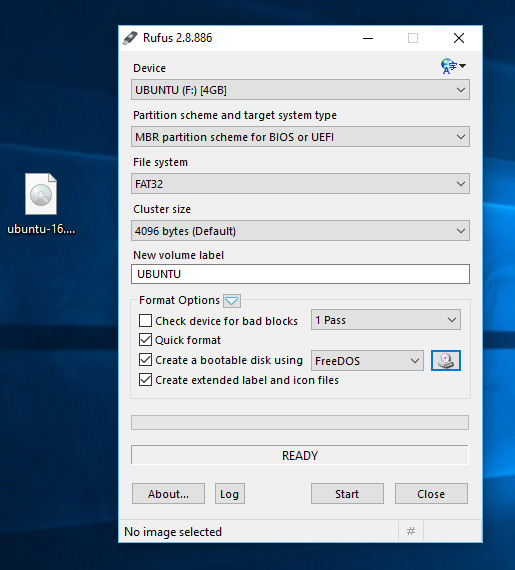
Since there is not yet Ubuntu Budgie as an option you must select Diskimage option, and then specify path to where you've downloaded iso. Choose your USB drive and click ok. Note: When using Windows, be sure to check if UNetBootin has selected the correct drive letter.
Partitioning
After you've setup your location, keyboard, and language settings, up next is drive partitioning. You have few different options. For new users it is recommended to choose install alongside currently installed system.
Partition Sizes
/- 30GB or more/swap- same as your RAM size (not needed from 17.04+)/boot- 500MB/home- rest of your hard disk space
When done, you can restart into your newly installed Ubuntu Budgie.